Website settings
Settings overview
Currently website settings lets you:
- configure game servers (including serveme.tf server preferences),
- configure map pool,
- configure game settings,
- configure default player skill,
- configure player restrictions,
- configure voice server,
- configure advanced site settings,
- bypass registration restrictions,
- import player skill,
- show site player skill table,
- scramble maps available to vote at the moment,
- review the activity log,
- delete player profiles (super-users only),
- edit rules,
- edit privacy policy.
Configuring game servers
See here.
Map pool settings
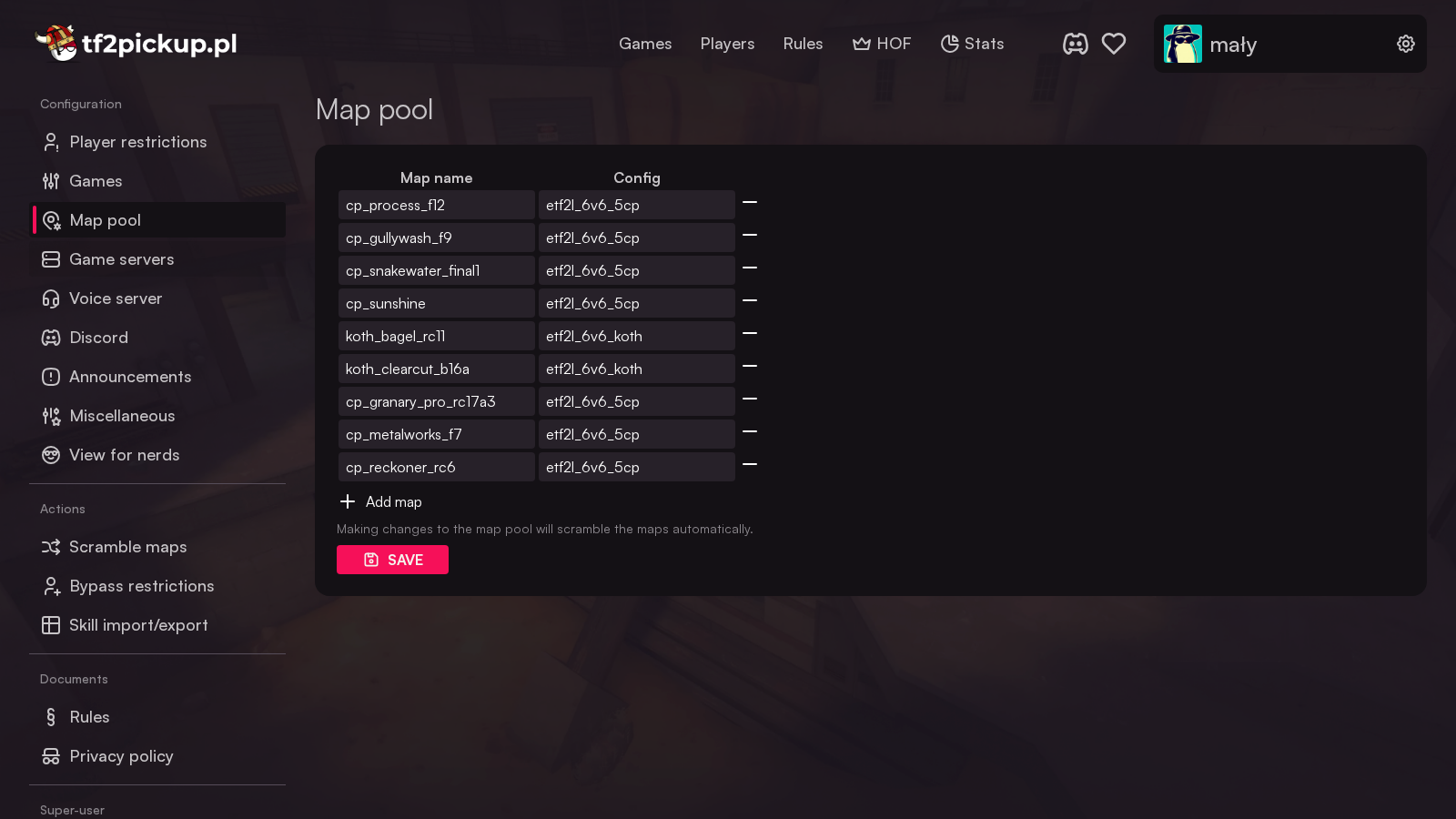
You can configure as much maps as you want to. You have to make sure the map is placed in the maps folder in the game servers, so they will be able to start the map. Values on left are map names without .bsp extension file and values on right are config names placed in the cfg folder (at the moment only ETF2L configs are available).
Defining game settings
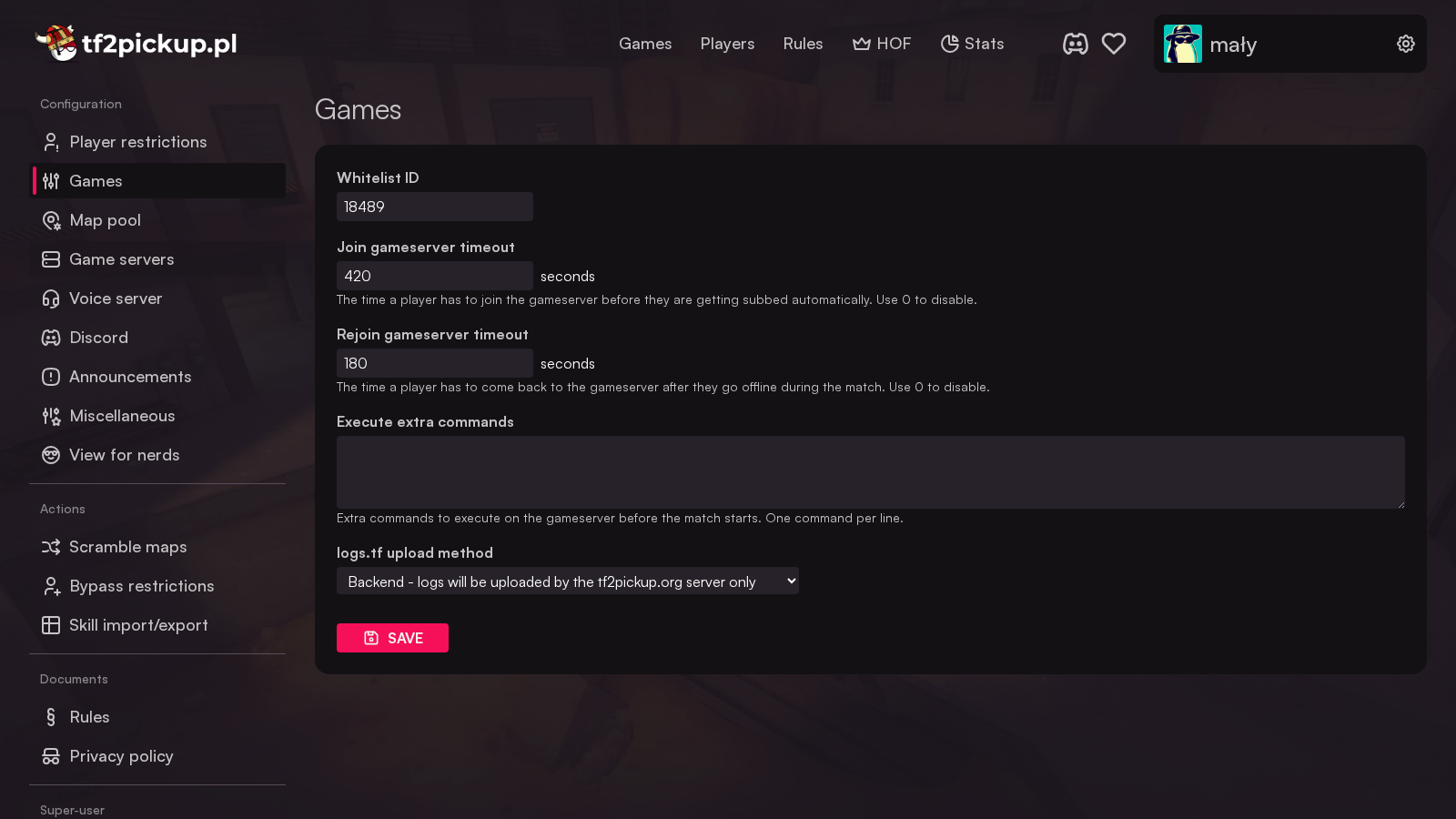
Here you can set up:
- server whitelist
- join gameserver timeout
- rejoin gameserver timeout
- execution of extra commands
- logs.tf upload method
Server whitelist
You can set up a whitelist by defining a whitelist name or its ID from whitelist.tf. If not defined, all items will be available on the pickup games.
Join gameserver timeout
This option defines time (in seconds) after which the site will check if player is connected to the gameserver. If not, the player will be subbed automatically and banned with a cooldown. Default levels set are:
- Level 0: 1800000 ms (30 minutes)
- Level 1: 21600000 ms (6 hours)
- Level 2: 86400000 ms (1 day)
- Level 3: 604800000 ms (7 days)
- Level 4: 2592000000 ms (30 days)
- Level 5: 15778476000 ms (approximately 6 months)
- Level 6: 31556952000 ms (approximately 1 year)
The first cooldown ban given is with a time defined in Level 0. Every next ban level is incrased by 1. Currently cooldown bans do not expire, meaning if your last cooldown ban was 4, you will get a Level 5 ban even after months from the last one.
When the value is set for 0, no join gameserver timeout time is being checked.
Rejoin gameserver timeout
This option defines time (in seconds) after which the site will request a substitute after player left the server during the game. When it passes and a substitute joins, the missing player gets a cooldown ban.
When the value is set for 0, no rejoin gameserver timeout time is being checked.
Execution of extra commands
Allows the server administrator to set extra CVars which are executed upon configuration file execution given for a map being run on the game server, one CVar per line. Leaving it empty means no extra configuration for the game server.
Logs.tf upload method
Defines a logs.tf upload method, where available options are:
- Off - no logs will be uploaded by logs.tf
- Backend - logs will be uploaded by the tf2pickup.org application only
- Gameserver - logs will be uploaded by the logs.tf sourcemod plugin
Configuring default player skill
See here.
Configuring player restrictions
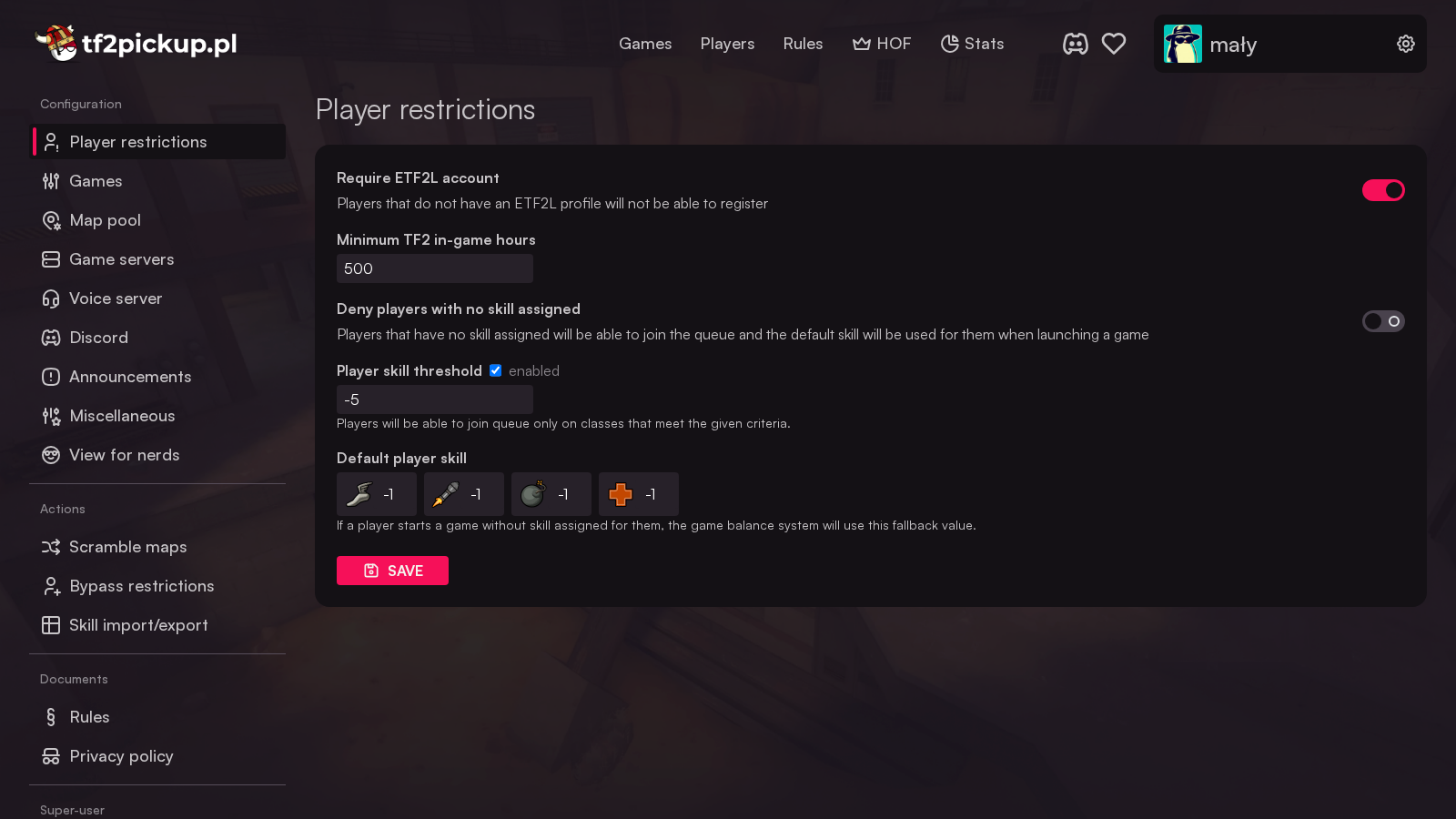
Since not all regions of the world participate in ETF2L or have a profile created there, this option allows you to:
- enable/disable user validation against the ETF2L API,
- define minimum TF2 in-game time spent in order to register to the website,
- require player verification to join the queue.
The ETF2L user validation lets website:
- Assign an ETF2L profile to the tf2pickup.org profile.
- Block player registration if the player is blacklisted/banned from the ETF2L.
- Assign the nickname to a player (without it, the current nickname on steam is assigned to a tf2pickup.org profile).
This switch lets you toggle the ETF2L profile validation check, according to your needs.
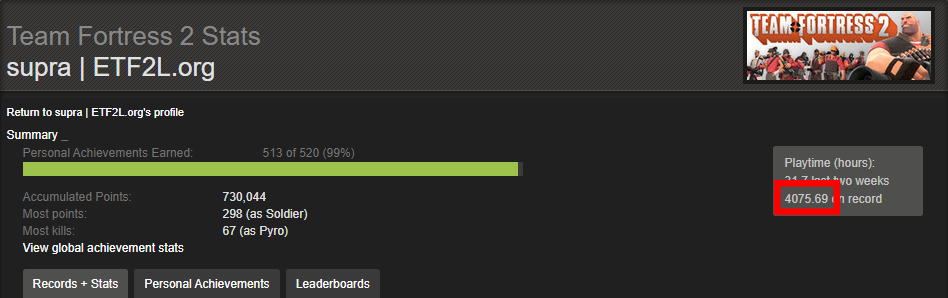
The in-game time spent restriction is based on the Team Fortress 2 Stats (example), not the general in-game spent time on the Steam profile (example). The example of hours being checked can be also seen below:
In order to change the requirement, simply click on it, define a new amount of hours and click OK.
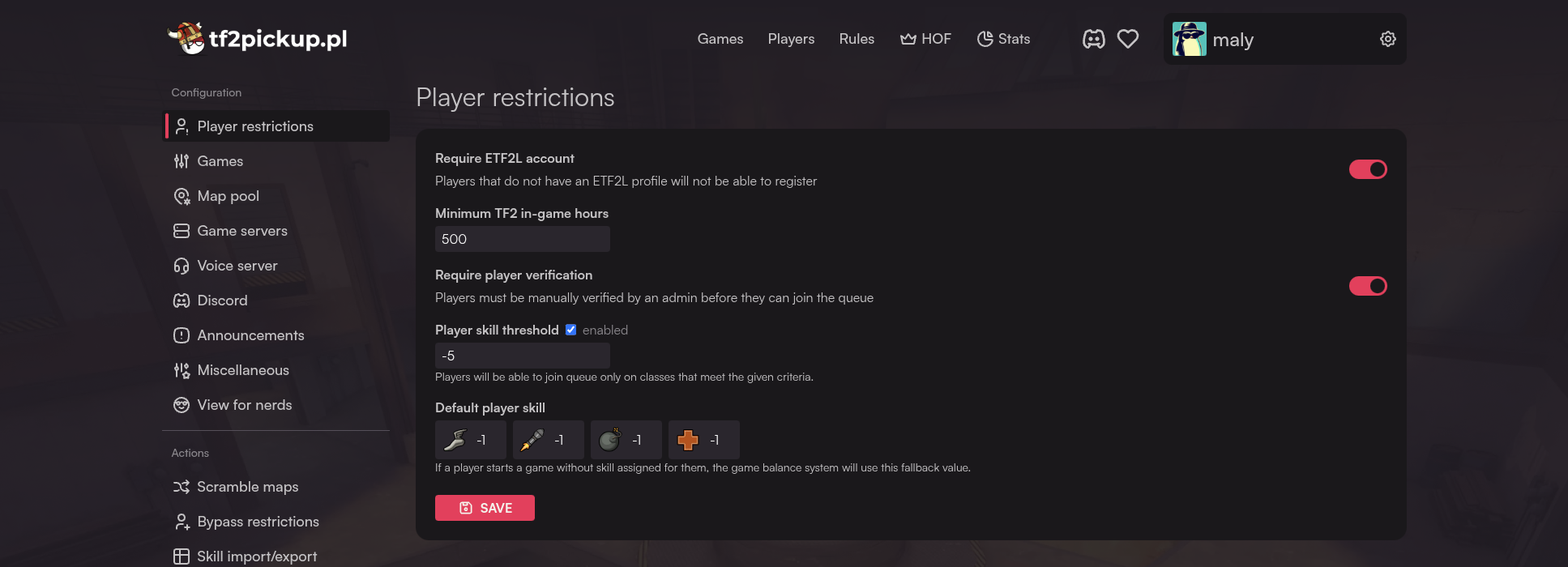
If Require player verification is enabled, admins must manually verify each player before they can join the queue. Unverified players will see the queue join buttons disabled. Admins can verify a player directly from their profile page using the Player verified checkbox in the admin toolbox.
When a player's verification status changes, a notification is sent to the Discord admin channel (green embed for verified, orange for revoked).
If Skill suggestions is enabled (experimental, on by default), the admin toolbox on player profile pages shows arrows next to class skill inputs when a player's in-game performance consistently suggests their manually-set skill may be miscalibrated. See Skill suggestions for details.
Configuring voice server settings
See here.
View for nerds
Changing values through this interface is not supported. Change these settings only if you know what you're doing and if you change anything here, make sure you have made a database backup first.
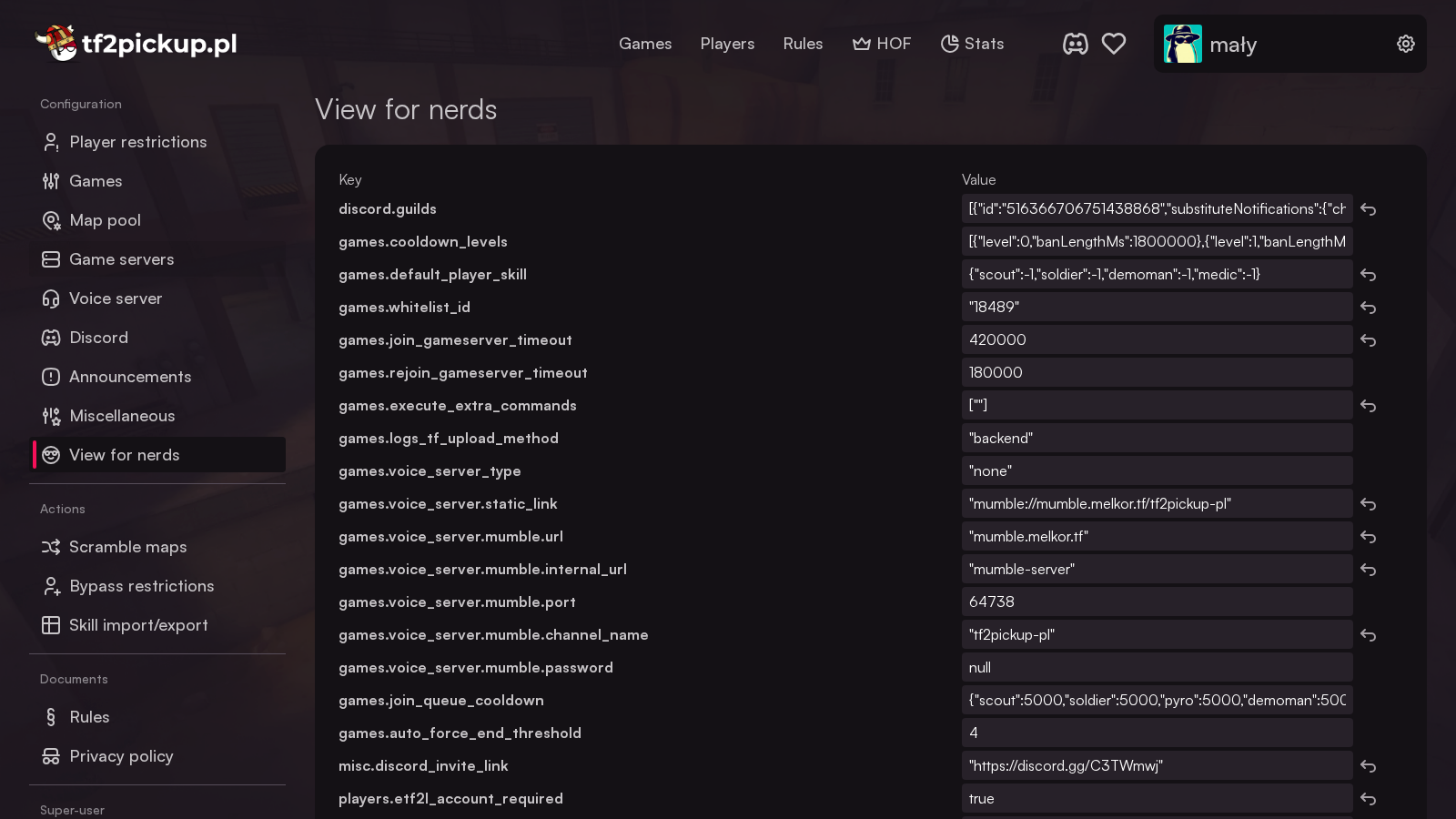
This menu lets you access raw application settings, but beware - changing some of them is not supported and might break the application, so make sure you know what you're doing before touching anything here!
Changing ban cooldown levels
Allows specifying the amount of cooldown levels as well as the ban length in milliseconds. Should be provided in JSON format in one line. Default settings are:
[
   {
      "level":0,
      "banLengthMs":1800000
   },
   {
      "level":1,
      "banLengthMs":21600000
   },
   {
      "level":2,
      "banLengthMs":86400000
   },
   {
      "level":3,
      "banLengthMs":604800000
   },
   {
      "level":4,
      "banLengthMs":2592000000
   },
   {
      "level":5,
      "banLengthMs":15778476000
   },
   {
      "level":6,
      "banLengthMs":31556952000
   }
]
Setting map cooldown
By default, after map is being picked to a next pickup game, it is excluded for the next two games from being available as a vote option. Changing this settings overrides the cooldown given for the map choice. Should be provided as an integer.
Setting up ready state timeout
Defines time in milliseconds (default: 60000) given for all players to click the button as an indication to be ready to play a game. Should be provided as an integer.
Setting up ready up timeout
Changing this variable is unsupported. Restart your application in order to apply the change.
Excluding specific serveme.tf gameservers
If defined, when the application reserves a serveme.tf server, it will not pick any servers with a name which contains values given in an array. Empty by default. Example: [ "NewBrigade", "MonikaBrigade"]
Changing promoted streams
This setting lets the super-user modify a promoted stream list apart from streams of all players who have integrated their accounts with Twitch. Options should be provided as an array. Default value: [ "teamfortresstv", "teamfortresstv2", "teamfortresstv3", "kritzkast", "kritzkast2", "rglgg", "essentialstf", "cappingtv", "cappingtv2", "cappingtv3", "tflivetv"]
Bypass registration restrictions
Players who do not meet the registration requirements (such as having a public Steam profile, an ETF2L profile, or a minimum number of TF2 hours) will see an error when they try to log in. To allow such a player to register anyway, you can add their Steam ID to the bypass list.
Go to the admin panel and choose Bypass restrictions. Enter the player's SteamID64 (a 17-digit number, for instance 76561198011558250) and click Add user Steam ID.
You must use the SteamID64 format. You can find a player's SteamID64 on their Steam profile URL or via tools like steamid.io.
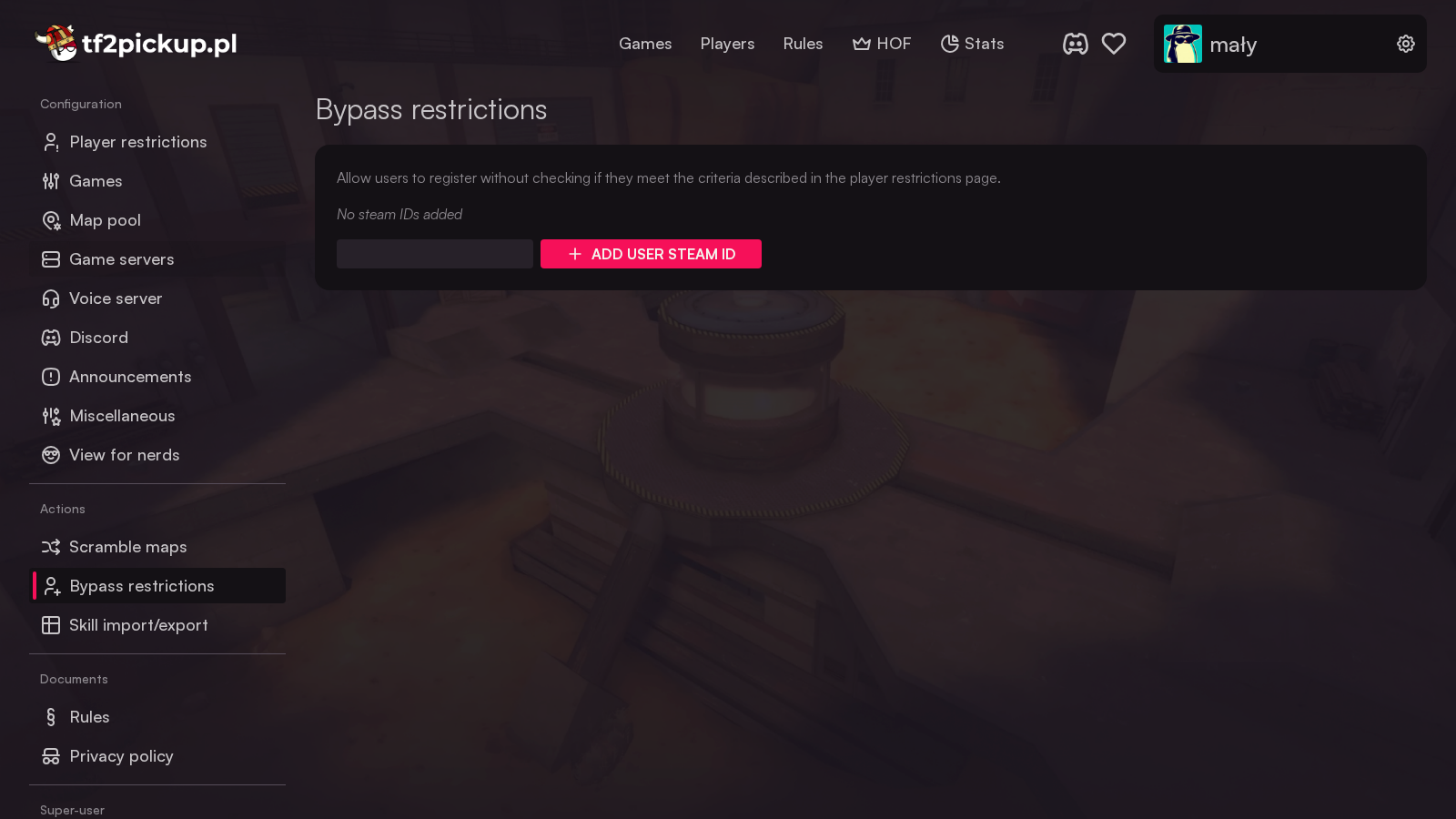
Once their Steam ID is on the bypass list, the player can log in normally through Steam — the registration restrictions will be skipped for them. Their profile will be created automatically when they log in for the first time.
If a player had a failed login attempt due to registration restrictions, let them know to wait a moment before trying again, because the error may persist briefly.
Setting up player skills
See here.
Activity log
The admin panel includes an Activity log — a paginated, filterable table that records significant administrative and game events on the site. Open it from the admin panel or directly at /admin/activity-log.
The log tracks events such as:
- player name changes (with the actor, when changed by an admin),
- player skill changes (showing the before/after values),
- configuration changes (only when a value actually changes — saving without a change records nothing),
- bans added and revoked (with reason and expiry/revoke details),
- map pool changes and map scrambles,
- games reconfigured, game servers reassigned, and games force-ended,
- substitute requests,
- queue clears (showing how many players were removed).
You can filter entries by type, player, and actor. The player and actor filters accept either a name search or a direct SteamID64. The current filter and sort state is kept in the page's query string, so you can share a link to a filtered view with other admins. Click the date column header to toggle the sort order.
Each player's admin toolbox includes an Activity log link that opens the log pre-filtered to that player (/admin/activity-log?player=<steamId>).
Consecutive map scrambles by the same admin are merged into a single entry with a ×N counter to keep the log readable. Historical entries are backfilled from existing name history, skill history and game events the first time the feature runs, so the log is not empty on upgrade.
Deleting a player profile
This action is irreversible. There is no undo and no recycle bin — once a profile is deleted it cannot be restored.
Super-users can permanently delete a player profile. Open it from the admin panel or directly at /admin/delete-player.
Search for a player by name or SteamID64, then use the per-player card to delete them. To prevent mistakes, deletion requires typing the player's exact nickname or SteamID64 (validated on the server) and confirming a browser dialog.
When a profile is deleted:
- The player document is hard-deleted, so the profile page returns a 404 and the player disappears from the player list and the hall of fame.
- Historical references in games, chat and the activity log are anonymized — the player's Steam ID is replaced with a
[deleted]sentinel, and they render as a greyed-out "deleted user" with no profile link. Chat mentions (both the rendered link and the@<id>token) are scrubbed too. - Player action logs keep the real Steam ID for auditing. The profile link there becomes a dead link, but the Steam ID remains visible in its own column.
- Live presence (online players, queue slots, friendships) is cleared so no live views break.
Super-users cannot be deleted. Their card shows "cannot be deleted", and the server re-enforces this even if the request is crafted manually.
Set up website rules
See here.
Set up privacy policy
See here.